How to Set Up a Canva Brand Kit: Logo, Colors and Fonts
A Canva Brand Kit stores your logo, brand colors and fonts so every social post, flyer and menu you make in Canva looks like it came from the same business. Here is how to set one up, step by step, and what to do if you are on Canva Free.
Plan details and steps checked against Canva’s help center in November 2026. Canva updates its interface often, so button names may move.
The short version
Go to Brand on the Canva homepage, create a new Brand Kit, then add three things: your logo, your colors by HEX code, and a heading and body font. Apply them to any design with Styles. Brand Kits need a paid Canva plan: Canva lists them on Pro, Teams, Business, Enterprise, Education and Nonprofits, not on Free.
The setup takes about ten minutes. The harder part comes before it: deciding what the logo, colors and fonts actually are. A Brand Kit stores decisions; it does not make them. If you are starting from nothing, sort those out first (more on that below), then come back to Canva.
Before you start, have these ready
- Your logo as a PNG (and an SVG if you have one), ideally 1,000 px wide or more
- Your brand colors as HEX codes, for example #A07BEA, with a note of what each is for
- The names of your heading font and body font
How to set up a Canva Brand Kit, step by step
- 1
Open Brand and create a new Brand Kit
On the Canva homepage, select Brand in the side panel. Open the dropdown next to Brand Kit and choose Create a new Brand Kit, then give it your business name. If you only see your team’s kit and no option to create one, your role or plan may not allow it; on team plans, admins and brand designers manage Brand Kits.
- 2
Upload your logo
Open the Logos section and upload your logo files. Canva recommends PNG files for everyday use and SVG files for scalable, print-ready use, plus variations for different backgrounds. Upload your main logo first, then any versions you have for dark backgrounds or small spaces such as a profile picture.
- 3
Add your brand colors by HEX code
In Colors, add a palette and type in each HEX code rather than picking by eye: an eyedropped color is rarely the exact value. Label each color by its job, such as Primary, Accent or Background, so anyone designing knows which to use for buttons, headings or backgrounds. Canva also supports color themes that set how the colors work together across backgrounds, elements and text.
- 4
Set your heading and body fonts
In Fonts, choose a font for headings, subheadings and body text. Many popular free fonts, including most Google Fonts, can be found by name in Canva’s font search. If yours isn’t there, Brand Kits let you upload your own brand font. Set sizes and weights for your main uses so a heading always looks like a heading.
- 5
Add the extras that help (optional)
Brand Voice holds tone notes and sample taglines; Photos, Graphics and Icons hold approved images. Only add what you will actually reuse. A kit with four logos, five colors and two fonts that everyone uses beats a kit with two hundred assets nobody can find.
- 6
Apply the kit to a design
Open a design, select its background, then choose Styles from the toolbar. Under your Brand Kit styles you can apply your colors and fonts to the whole design in one step. Your logos, colors and fonts also appear in the editor’s side panels, so you can drag the logo in and pick brand colors without retyping codes.
Prefer not to type it all in? Canva’s Brand Kit Builder can set up a kit automatically from your website or from a PDF, pulling in logos, colors and fonts depending on what the source contains. It is a good starting point if you already have a brand guide or a website, but check every color and font it picks up: automatic extraction can grab a stray photo color or a fallback font.
A worked example: a coffee shop’s Brand Kit
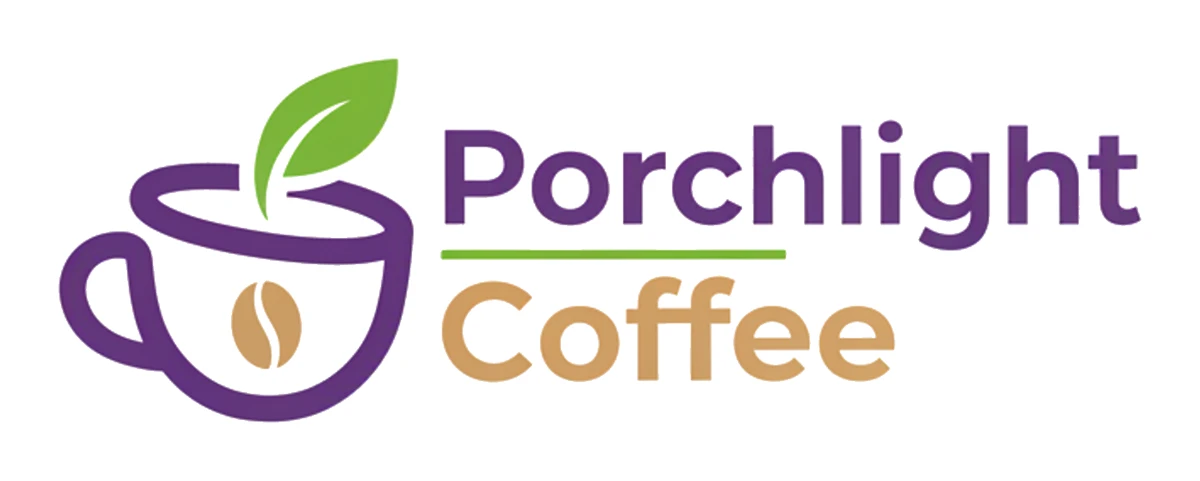
Here is what goes into a real kit. This is Porchlight Coffee, a coffee shop brand generated with Magnt: the logo, the five colors and the two fonts below are exactly what the kit delivered.
Primary
#A07BEA
Secondary
#E8AD8F
Accent
#2CED6C
Neutral
#4E485B
Background
#FAF9FB
Heading font: Abril Fatface · Body font: Mulish
In Canva, that becomes:
- Logos: the logo PNG. Because it sits on a white background, it looks right on white and light designs; for photos or dark backgrounds you will want a transparent version (see the next section).
- Colors: one palette with the five HEX codes, labelled Primary #A07BEA, Secondary #E8AD8F, Accent #2CED6C, Neutral #4E485B and Background #FAF9FB. Use the neutral for body text and the accent sparingly, for one button or highlight per design.
- Fonts: Abril Fatface for headings and Mulish for body text. Both are free Google Fonts, so search for them by name in Canva before uploading anything.
See more real kits, including a food truck and a hair salon, on our examples page.
Common problems, and how to fix them
My logo has a white box around it
Your logo file has a solid white background rather than a transparent one. On a white design you will never notice; on a photo or a colored background you get a white rectangle. Either ask whoever made the logo for a transparent PNG or an SVG, or remove the background in Canva with its Background Remover, which is a paid-plan feature. Save the cleaned-up version back into the Brand Kit as a second logo so you only do it once.
The colors look different from my logo
Almost always the colors were picked by eye or with the eyedropper from a compressed image. Type the exact HEX codes into the Brand Kit instead. If you don’t know them, a brand guide or brand summary from your designer or logo tool should list them; our guide to brand color palettes explains how many to keep and what each one is for.
My font isn’t in Canva
Search Canva’s font list by the exact font name first; many free fonts are already there. If it isn’t, upload the font file to your Brand Kit, but only if its license allows it. Free Google Fonts are licensed for this kind of use; a commercial font you bought may limit where it can be installed. Our guide to logo fonts covers pairing a heading and body font that work together.
The logo turns into a smudge as a profile picture
A detailed logo that reads well on a sign can become an unreadable blob at 40 pixels. Preview it at profile-picture size before you commit. If the full logo with the name is too busy, use just the icon on its own for small spaces, and add that crop to the Brand Kit as a separate logo.
On Canva Free? Do this instead
Without a paid plan you can’t save a Brand Kit, but you can get most of the consistency with a little discipline:
- Upload your logo once to Uploads; it stays there for every design.
- Keep your HEX codes in a note on your phone and type them into the color picker each time. Never eyedrop.
- Make one finished design you are happy with (a social post, say) and duplicate it for every new post, so fonts, sizes and colors carry over.
- Write your two font names at the top of that note so you never pick a “close enough” font by accident.
If you design something in Canva every week, the paid plan’s Brand Kit pays for itself in time saved. If it is a few designs a year, the free workaround is fine.
Don’t have a logo, colors and fonts yet?
A Brand Kit is only as good as what goes in it. If you are opening a café or a salon and haven’t settled your brand, you have three realistic routes: hire a designer, which takes longer and costs more but gets you a custom logo and usually vector files; build it yourself in Canva from templates, which is free but often ends up looking like everyone else’s template; or use an AI brand kit generator.
Magnt is our AI brand kit generator, so weigh this accordingly. You answer a few questions about your business and in about two minutes it generates 3 logo concepts, a 5-color palette with HEX codes and a heading and body font pairing, plus a 1-page brand summary. You see the logos free with no card, and pay $19 once to download the kit, with a 7-day money-back guarantee. The logo files are PNGs (1024 px and 2048 px) on a white background; there is no vector file and no editor, so if you need either, a designer is the better route. Everything in the kit drops straight into the Canva Brand Kit steps above.
Comparing tools first? Read Canva vs AI logo generators or our roundup of Canva alternatives for logos and branding.
Canva Brand Kit FAQ
Is the Canva Brand Kit free?
No. Canva’s help center lists Brand Kits as available on Canva Pro, Teams, Business, Enterprise, Education and Nonprofits plans, not on Canva Free. On the free plan you can still upload your logo to Uploads and type your brand colors in by HEX code each time; you just don’t get a saved kit that applies them for you.
How do I create a Brand Kit in Canva?
From the Canva homepage, select Brand in the side panel, open the dropdown next to Brand Kit and choose Create a new Brand Kit. Name it, then add your logos, your color palette and your fonts. Canva can also build a kit automatically from your website or a PDF, which you then check and correct.
What should go in a Canva Brand Kit?
At minimum: your logo (plus a version for dark backgrounds if you have one), your brand colors with HEX codes and labels such as Primary and Accent, and a heading and body font. Canva also lets you add brand voice notes, photos, graphics and icons, but the logo, colors and fonts are what make every design look like it came from the same business.
How many Brand Kits can I have in Canva?
It depends on your plan. Canva’s help center says teams can have up to 1,000 Brand Kits depending on the subscription, with up to 2,000 assets per category in each kit. Where an admin enables personal Brand Kits (on Teams, Business, Enterprise and some Education plans), each person can also create one private kit.
Can I set line spacing or letter spacing in a Canva Brand Kit?
Not yet. Canva’s own Brand Kit guide notes that letter and line spacing can’t be set through the Brand Kit. You can set fonts for headings, subheadings and body text and their sizes and weights for key uses, then adjust spacing in each design.
Where do I get a logo, colors and fonts to put in the Brand Kit?
If you don’t have them yet, you need to decide them before the Brand Kit is useful. A designer can make them, or an AI brand kit generator such as Magnt gives you 3 logo concepts, a 5-color palette with HEX codes and a heading and body font pairing in about two minutes; you see the logos free and pay $19 once if you want to keep the kit.

Founder & CEO of Magnt
Vik Chadha founded Magnt in 2012 and is its CEO. He also co-founded Backupify, the cloud backup company acquired by Datto, has started 20+ companies and products from SaaS platforms to consumer apps, and has advised 100+ startups through EnterpriseCorp. He writes about branding for small businesses and the founders who run them.